



MAXOPS ADVENTURES
PANEL 1 / 1
The Cost Sentinel, a small round-helmeted mascot with big friendly eyes and a teal cape, waves hello in front of a starry skyline of glowing server towers.
FIG. 01 — COVER
MaxOps Adventures · Issue №2

THE ONBOARDING
RUN

Three Steps To A Read-Only Key

The stack is up and the gate is open — now the Sentinel needs permission to look. Every screen, every dropdown, every button, and the exact rule that decides when Continue wakes up.

The Sentinel cheerfully holds open two browser-window doors, welcoming you into a warm golden hall of servers.
FIG. 02 — THE THREE DOORS
Prologue · Know where you are

THE MAP AT
THE TOP

Cost Sentinel

Three doors, one strip across the top of every screen. It tells you which one you're standing in.

1 Information
2 IAM Role
3 Account Settings

Three states, three looks. The highlighted, solid-numbered tile is where you are. A plain, full-contrast tile is behind you. A faded tile is still ahead. The tiles are a progress display, not buttons — you move with Back and Continue at the bottom of each screen.

Every move writes the step to the backend and into the URL, e.g. /onboarding?step=role. Close the browser, come back tomorrow, and the wizard reopens exactly where you left it — profile, environment, account, and regions still filled in.

The Sentinel taps a floating panel and sends a group of smiling container boxes happily launching upward.
FIG. 03 — THE WELCOME
Step 1 of 3 · Mostly reading material

THE
INFORMATION SCREEN

Newcomer

Three big cards — Automated Optimization, Policy-Based, Cost Savings. Do I have to pick one?

Cost Sentinel

No. They're pure description — not settings, not toggles. Nothing is stored when you read them.

The cards and the About MaxOps paragraph tell you what the product does: find underused resources, express rules as policies, track the savings. You configure none of it here — check tuning lives in Settings once onboarding is finished.

This screen does exactly one piece of real work, and it's on the next panel.

Pricing database — state A: artifact available

Bundled pricing artifact found and not yet extracted.

Artifact…/pricing_artifacts/pricing_db.tar.zst
Database…/data/pricing.db
Extract Pricing Database
State B: working
Extracting…
State C: done
✓ Pricing database ready
EXHIBIT A — PRICING CARD
Step 1 · The one real control

THE PRICING
DATABASE

Cost Sentinel

"This volume is idle" is trivia. "…and it costs $41 a month" is a decision. That second half comes from here.

AWS price data ships as a compressed artifact inside the repository, so MaxOps works offline — but it is never unpacked behind your back. You choose, on this screen.

01
The status line
Written by the backend. It tells you which of the three states you're in.
02
Artifact
Path to the packed file shipped with MaxOps.
03
Database
Where it will be unpacked to on this machine.
04
Extract Pricing Database
Appears only when an artifact exists and hasn't been unpacked. Purely local decompression — no network call, no AWS call.
05
Pricing database ready
The green badge replaces the button for good.
Bottom of the Information screen
Get Started ▸

Always enabled. The only ungated button in the wizard.

What the click writes
saved state
# 1. progress, persisted server-side
onboarding_step = "role"
# 2. then the browser navigates
 /onboarding?step=role
EXHIBIT B — GET STARTED
Step 1 · Leaving the room

GET
STARTED

Newcomer

The extract looks optional. Can I just… skip it?

Cost Sentinel

You can — Get Started won't stop you. But then I run blind on price: findings arrive with no cost and no savings attached. It takes seconds. Do it now.

There is nothing on this screen you can get wrong, so nothing blocks you. If you do skip it, the button and badge stay on this screen — come back any time and extract, then re-run the checks.

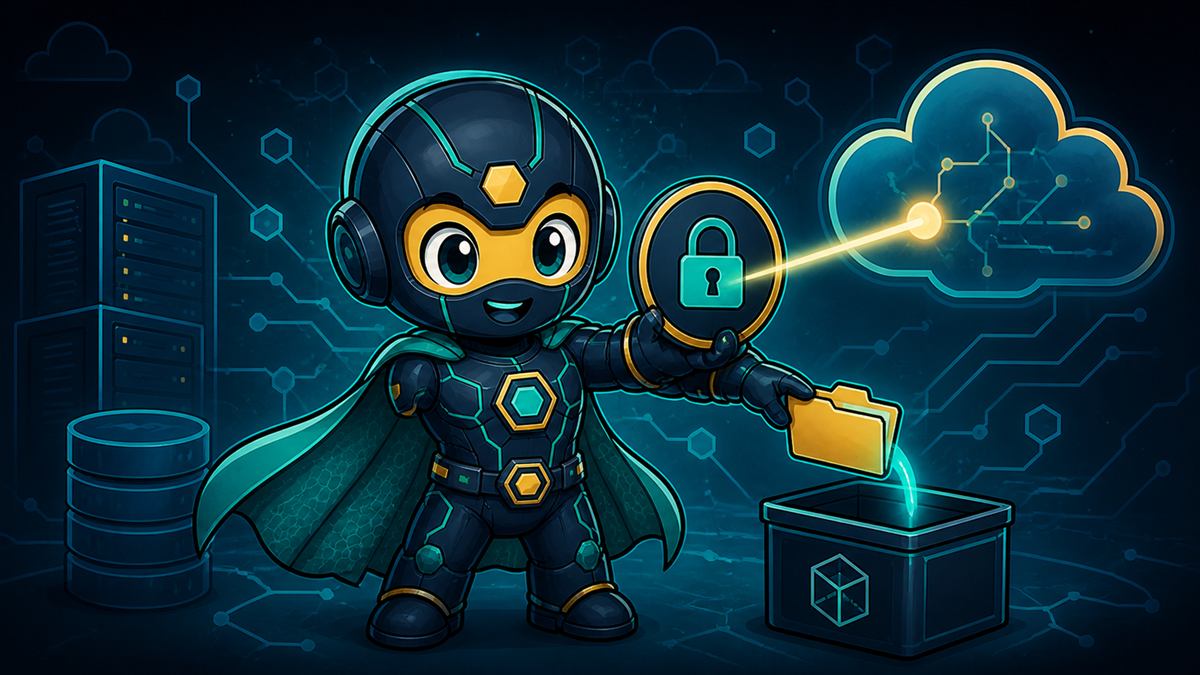
The Sentinel holds up a padlock badge beaming to a cloud while gently lowering a credentials folder into a container.
FIG. 04 — THE KEY
Step 2 of 3 · The long chapter

THE READ-ONLY
KEY

Cost Sentinel

I can't peek at a single instance until AWS says I may! So let's make you a key — a friendly one that only ever turns one way: read.

RoleMaxOpsReadOnlyRole
PolicyMaxOpsReadOnlyScanPolicy
Actions87

Role is the identity MaxOps assumes. Policy is the inline permission document attached to it. Actions counts the distinct API calls it allows — 87 of them across 11 groups, and every single one is a List, Get, or Describe. No Create. No Modify. No Delete. CUR export setup, S3 writes, and remediation actions are deliberately left out.

There are two routes to that key, and a button for each.

AWS profile
maxops (123456789012)
Other rows in the list
default (210987654321)
sandbox (account unavailable)

↳ Resolve AWS account for profile failed (ExpiredToken): …

EXHIBIT C — THE DROPDOWN
Step 2 · Where the list comes from

THE AWS PROFILE
DROPDOWN

Newcomer

Where does this list come from, and what's the number in brackets?

Cost Sentinel

Your own local AWS profiles — the ones in ~/.aws/config and ~/.aws/credentials. I read their names, then ask AWS who each one is. That answer is the number in brackets.

A
"account unavailable"
The identity lookup failed — expired SSO session, stale keys, no network. The reason prints under the dropdown.
B
No profiles at all
You get a single default entry, using whatever credentials the environment provides.
C
Greyed out
While profiles are still loading, and while a role is being created.
What the selected profile becomes
trust policy
{
  "Sid": "AllowCurrentMaxOpsCaller",
  "Effect": "Allow",
  "Principal": {
    "AWS": "<the profile you picked>"
  },
  "Action": "sts:AssumeRole"
}

Nobody outside this statement can assume the role.

EXHIBIT D — THE TRUST
Step 2 · The part people get wrong

IT PICKS THE
LOCKSMITH

Cost Sentinel

That dropdown does not choose which account gets scanned. It chooses the credentials that do the setup work — the identity that makes the key.

01
It must be able to write IAM
iam:CreateRole and iam:PutRolePolicy, or Create Role will fail. If your day-to-day profile is read-only, take the escape hatch three panels along.
02
It becomes the trusted principal
The new role's trust policy names precisely this identity as the only one permitted to assume it.
Newcomer

And if I change the dropdown after I've already made a role?

Cost Sentinel

The success card clears and Continue goes back to grey — on purpose. Different profile can mean a different account and a different trusted principal, so the key has to be cut again. Re-picking the value it already had is harmless: I compare old and new, and do nothing when they match.

The two buttons beside the dropdown
✦ Create Role ↓ Download JSON
…and what lands in your AWS config
~/.aws/config
[profile MaxOpsReadOnlyRole]
role_arn       = arn:aws:iam::123456789012:role/MaxOpsReadOnlyRole
region         = us-east-1
source_profile = maxops
EXHIBIT E — CREATE ROLE
Step 2 · Route one

WHAT CREATE ROLE
ACTUALLY DOES

01
Identify
Loads the selected profile and calls sts:GetCallerIdentity to learn who you are and which account you're in.
02
Trust
Builds the trust policy naming that caller as the only principal allowed to assume the role.
03
Create
iam:CreateRole for MaxOpsReadOnlyRole — 1-hour max session, a description, tags ManagedBy=MaxOps and MaxOpsAccess=ReadOnlyScan. If it already exists it is not duplicated — the trust policy is updated instead and the badge reads Updated.
04
Attach
Puts the inline MaxOpsReadOnlyScanPolicy on it — those 87 read-only actions.
05
Wire it up locally
Writes the MaxOpsReadOnlyRole profile into your ~/.aws/config, pointing at the new ARN with your selected profile as its source.
06
Wait
Up to about 20 seconds, probing until the new permissions actually answer.
Cost Sentinel

IAM is eventually consistent. For a few seconds a brand-new role still draws AccessDenied from some endpoints — and onboarding is about to fire a hundred checks. If the button seems to pause at the end, that pause is doing you a favour.

↓ Download JSON

Saves maxops-read-only-scan-policy.json to your Downloads folder.

maxops-read-only-scan-policy.json
{
  "Version": "2012-10-17",
  "Statement": [
    { "Sid": "Ec2EbsVpcRead",
      "Effect": "Allow",
      "Action": [ "ec2:DescribeInstances", … ],
      "Resource": "*" },
    … 10 more read-only groups …
  ]
}
EXHIBIT F — THE POLICY
Step 2 · The evidence

DOWNLOAD
JSON

Cost Sentinel

A browser-side file save. No server call, no AWS call, nothing transmitted anywhere. Click it before, after, or instead of creating a role.

Newcomer

What do I do with a file full of permissions?

01
Get approval
Attach it to the ticket. Security reads all 87 actions and confirms nothing writes — before anyone touches your account.
02
Hand it to whoever has IAM rights
They create the role from the exact document MaxOps would have used, then give you the ARN — the next panel's route.
03
Put it in your IaC
Paste into Terraform or CloudFormation so the role is managed like every other role in your estate.
04
Audit later
Keep it as the record of what MaxOps was permitted to read on the day you onboarded.

The same document is on screen too: Permission groups lists each of the 11 blocks with its actions and resource scope, and Policy JSON shows the raw text. The download is simply that, as a file.

"Credentials can't create IAM roles?"
arn:aws:iam::123456789012:role/MyReadOnlyRole
Use this role

Dead while the box is empty or the text isn't a valid role ARN.

Malformed input
arn:aws:iam::123456789012:user/nova

Enter a full IAM role ARN, e.g. arn:aws:iam::123456789012:role/MyReadOnlyRole.

EXHIBIT G — THE ESCAPE HATCH
Step 2 · Route two

USE AN
EXISTING ROLE

Cost Sentinel

For everyone whose credentials are read-only. Your admin cuts the key from the downloaded policy — or points you at one that already exists — and you paste its ARN here. I make zero IAM writes on this path. No role created, no policy attached, nothing in your account modified.

01
Shape
Must be a full role ARN — partition, 12-digit account, :role/, a name. Paths like role/team/Reader and partitions like aws-us-gov are fine. Get it wrong and a red line appears under the box while the button stays dead.
02
Existence
Same account as your selected profile? MaxOps tries iam:GetRole. A definitive "no such role" is reported; a permissions failure on the lookup itself is tolerated and left to the next test.
03
Usability
The real test — an actual sts:AssumeRole attempt. If the role's trust policy doesn't allow your selected profile, you're told now, not an hour later when every check fails.
04
Wire it up
Writes the same local MaxOpsReadOnlyRole profile and waits for propagation, exactly as the create path does.

The result card's badge reads Using existing role for this route.

Role ready Created
Source Profilemaxops
MaxOps ProfileMaxOpsReadOnlyRole
Account123456789012
Role ARNarn:aws:iam::123456789012:role/MaxOpsReadOnlyRole
AWS ConfigC:\Users\you\.aws\config
Trusted Principalarn:aws:iam::123456789012:role/YourAdminRole
EXHIBIT H — ROLE READY
Step 2 · Both routes end here

READING THE
SUCCESS CARD

01
Badge
Created (new role), Updated (already existed, refreshed), or Using existing role (the paste-an-ARN route).
02
Source Profile
The profile you chose — the credentials that did the work.
03
MaxOps Profile
The new local profile every scan will use from now on.
04
Account
The 12-digit account this happened in. Remember it — it's about to auto-fill on the next step.
05
Role ARN
The role's full identifier. Also copied into the ARN box above, so it's easy to select and copy.
06
AWS Config
The exact file on disk MaxOps edited, so you can go and inspect the change.
07
Trusted Principal
The only identity allowed to assume this role.
The dropdown moves by itself
MaxOpsReadOnlyRole (123456789012)
✦ Create Role

This is the read-only scan profile MaxOps just set up — it can't create or update IAM resources. Pick a different profile to re-create the role.

Bottom of the screen
◂ Back Continue ▸ before
◂ Back Continue ▸ after
EXHIBIT I — THE GATE OPENS
Step 2 · When the gate opens

WHY THE DROPDOWN
MOVED

Cost Sentinel

After success the dropdown switches itself to MaxOpsReadOnlyRole. That's confirmation, not a glitch — the read-only scan profile now exists and is live.

Newcomer

And Create Role greyed out at the same moment.

Cost Sentinel

Because that profile is read-only by design — using it to write IAM is a guaranteed failure. The button is saving you the trip. Pick a different profile first if you need to re-cut the key.

Continue stays grey until a role is ready. It enables when any of these is true: Create Role succeeded this session; Use this role succeeded this session; or you're returning to a session where a role was already saved — both a scan profile name and a role ARN on record. It switches back off the moment you select a genuinely different AWS profile.

Back returns to Information and saves progress on the way. The profile you picked is remembered, and a role you already created stays created.

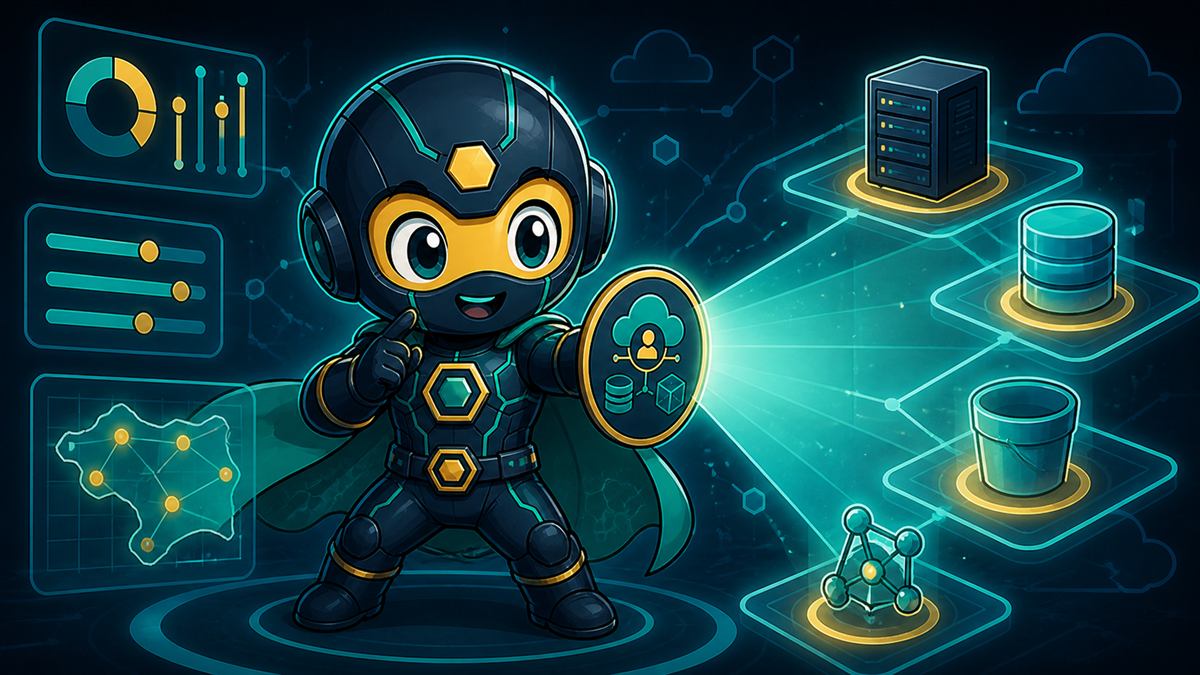
The Sentinel gives a thumbs-up as a friendly scan beam sweeps across resource icons beside dials and a region map.
FIG. 05 — THE SCOPE
Step 3 of 3 · Naming the scope

THE
ENVIRONMENT

Development Staging Production UAT QA Testing Sandbox

Seven preset tiles, pick exactly one — clicking a second moves the selection rather than adding to it. This is a label for the workspace, not a filter: it does not restrict which resources get scanned. It's how you tell this MaxOps workspace apart from the next one.

Cost Sentinel

Need something the presets don't cover — "eu-payments-prod"? Click Use a custom environment and the tiles become a text box; the link then reads Choose from standard environments to go back. Careful — toggling clears both the tile selection and the typed text, so re-enter your choice after switching.

Account
123456789012

Usually already filled in when you arrive.

Regions
⌕ Search by region name or code
US
N. Virginia us-east-1 Ohio us-east-2 Oregon us-west-2
Europe
Ireland eu-west-1 Frankfurt eu-central-1
EXHIBIT J — ACCOUNT & REGIONS
Step 3 · Which account, which ground

ACCOUNT &
REGIONS

Account — the 12-digit AWS account ID this workspace covers. If step 2 resolved an account (it almost always does) MaxOps auto-fills it here and clears any prior error. It re-applies even if you typed over it, so the field agrees with the role you just set up. Validation is strict: exactly twelve digits. Anything else keeps Continue grey and, on submit, shows "Enter a valid 12-digit AWS account ID."

Cost Sentinel

You can type a different account number — but if you do, make sure the IAM role I use actually has access to that account. Changing the digits doesn't change the key.

01
Multi-select
Unlike Environment, click as many as you need. Filled teal means selected; click again to remove.
02
One is always kept
Try to deselect your last remaining region and nothing happens — a scan with no region has nothing to look at.
03
us-east-1 by default
On a fresh setup. Returning users get whatever they saved.
04
Grouped & searchable
US, Americas, Canada, Europe, Asia Pacific, Middle East, Africa, China, GovCloud. Search filters by name, code, or group and reports the match count; clears it. Searching never changes your selection — a selected region filtered out of view is still selected.
Newcomer

Should I just tick everything to be safe?

Cost Sentinel

Checks run per region — every extra one is more API calls and a longer first scan. Start with the regions you actually run in; adding more later is one click in Settings.

Draft autosave
~600ms after you stop typing
 draft saved
   environment = "Production"
   account     = "123456789012"
   regions     = ["us-east-1", "us-west-2"]
# and once more when you navigate away
The last gate
Back Continue ▸
EXHIBIT K — AUTOSAVE
Step 3 · Nothing is lost

AUTOSAVE &
THE LAST GATE

Cost Sentinel

About half a second after you stop typing, I quietly save a draft — environment, account, regions. Once more when you navigate away. That's why Back and forward doesn't clear the form, and a reload picks up where you were.

Continue needs all three at once:

01
Environment
A tile chosen, or a non-blank custom name typed.
02
Account
Exactly 12 digits.
03
Regions
At least one — which the form already guarantees.

It's also disabled while the save is in flight, so a double-click can't submit twice. Back returns to the IAM Role step and is disabled during that same save.

Checks streaming in, three at a time
onboarding run
 ec2-idle-instances          4 findings
 ebs-unattached-volumes      11 findings
 s3-lifecycle-policy         running (slow ≠ broken)
 rds-rightsizer              2 findings
 es-domain-idle              attempt 1/3, retrying in 2s
Concurrency3
Attempts3
Timeout120s
EXHIBIT L — THE RUN
After the third Continue · He goes to work

THE FIRST
SCAN

Cost Sentinel

The step strip disappears. Settings saved. I start immediately — you finish onboarding with real findings, not an empty screen.

01
~100 checks, three at a time
Each card shows its result as it lands.
02
Three attempts, two seconds apart
Absorbs the last of the IAM propagation flicker.
03
Two minutes per attempt
Some checks are legitimately slow — S3 lifecycle across dozens of buckets. Slow is not broken.
04
Circuit breaker
The same error three times in a row is the signature of a real misconfiguration, so the run is cancelled rather than grinding through a hundred identical failures — and you land on the dashboard with the reason. Timeouts are exempt: a slow check never trips it.
The Sentinel beams and raises the badge in triumph amid confetti, beside a completed checklist and a rising chart over a sunlit city.
FIG. 06 — RESULTS
Mission status · Onboarding complete

RESULTS &
VICTORY

Cost Sentinel

Savings surfaced. Evidence attached. View Dashboard is one click away — and the wizard never asks again.

When the run finishes you get a summary of what was found and a button through to the dashboard where the real work starts. Thresholds, which checks are enabled, and everything else now live under Settings.

Newcomer

Read-only the whole way. I can show my security team every line.

Appendix A · The grey button

THE CONTINUE RULEBOOK

Cost Sentinel

One question every wizard raises: why is that button grey? Here's every answer.

Screen Button Enabled when Greyed out when
InformationGet Started Always — there is no gate on this screen. Never.
InformationExtract Pricing DB A bundled artifact exists and hasn't been unpacked yet. Hidden entirely once the database is ready, or if there's no artifact to unpack.
IAM RoleCreate Role Profiles have loaded and the selected profile isn't the read-only MaxOps scan profile. While profiles load, while a creation is in flight, or when the read-only scan profile is selected.
IAM RoleDownload JSON Always — a local file save with no prerequisites. Never.
IAM RoleUse this role The box holds text matching a full IAM role ARN. Empty box, malformed ARN, or a registration already running.
IAM RoleContinue A role is ready — created or registered this session, or already saved from a previous one. No role yet, or you switched to a different AWS profile, which resets readiness.
Account SettingsContinue Environment chosen and account exactly 12 digits and at least one region. Any of those unmet, or while the settings are being saved.
Any stepBack Always — and your progress is saved on the way back. During submission only.
Appendix B · Red panels

WHEN IT
GOES WRONG

Cost Sentinel

Every error here is telling you something specific. Read the message, not the vibe.

"account unavailable" beside a profile

I couldn't resolve that profile's identity — expired SSO session, stale keys, or no network. Refresh the credentials (aws sso login, or new keys) and reload the page. The precise reason is printed under the dropdown.

"Failed to create MaxOpsReadOnlyRole"

Almost always the selected profile lacking iam:CreateRole or iam:PutRolePolicy. Either pick a profile that can write IAM, or take the Download JSON → admin creates it → paste the ARN route.

"Enter a full IAM role ARN…"

The pasted text isn't a role ARN. Look for a stray space, a truncated copy, or an ARN for something other than a role. Shape: arn:aws:iam::123456789012:role/MyReadOnlyRole.

"Could not assume <arn> with profile <name>"

The role exists, but its trust policy doesn't let your selected profile in. Ask whoever owns the role to add your identity as a trusted principal — or select the profile that is trusted.

"Role <name> does not exist in account…"

Well-formed ARN pointing at nothing. Usually a typo in the role name, or the wrong account number.

"Run canceled: the same error occurred 3 times in a row"

The circuit breaker. Three identical failures means something structural, not a blip — most often a permission the role is missing, or credentials that expired mid-run. Read the repeated message, fix that one thing, and re-run the checks from the dashboard. You don't have to redo onboarding.

Findings appear, but with no cost or savings figures

The pricing database was never extracted. Go back to /onboarding?step=information, click Extract Pricing Database, and re-run the checks.

MaxOps Adventures · Issue №2 · The End

THREE STEPS.
ONE READ-ONLY KEY.
ZERO DATA OUT.

Keep this issue open beside the app the first time through — every control in the product has a panel here.